
How to Migrate to Big E-Z Accounting
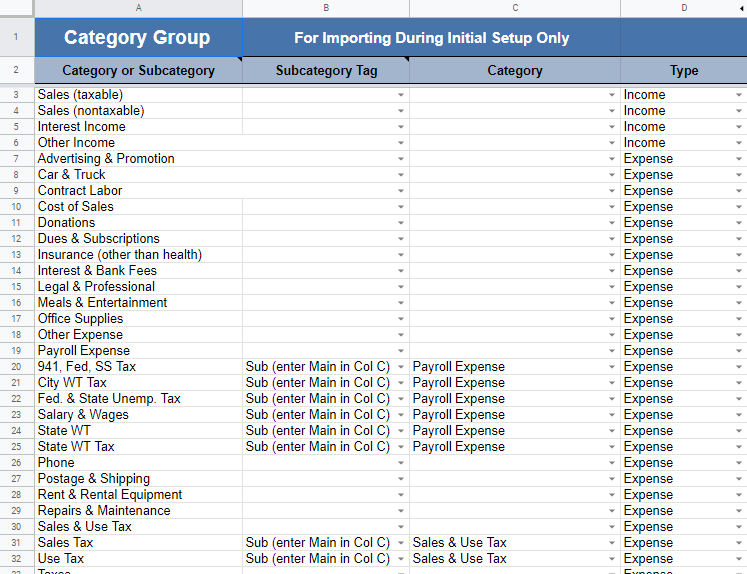
Most small business owners or managers invest a lot of time in setting up their accounting system so making a switch to a new program really does take a leap of faith. Here at Big E-Z we have put a lot of thought into making the switch as simple as possible. There are just a few steps to make depending on where you are switching from. In the program we have a Category Group sheet. You could use this if you are planning to make numerous changes to the initial preset Income and Expense Category List.
From QuickBooks. This can be done after install.
From your QuickBooks desktop click on Reports > Accountant and Taxes > Account Listing > Excel > Create New Worksheet > Export > Save this Excel file on your computer or in Google Drive.
With Our Free Help
If you would like assistance in transferring your Chart of Accounts, then sign up here for a custom setup (available for yearly subscribers).
Do It Yourself
If you would like to transfer your Chart of Accounts yourself, be advised that our system uses a dash between Categories and Subcategories so you will need to remove any dashes from your current list before importing into the program. (See image below.)
From the Excel file Account Column C, copy your income categories to our Category Group Column A. For any Subcategories move its Category name to Column C and remove it from Column A. Now do the same for the expenses. This is only done once when setting up, and we are more than happy to help you with this process. Take advantage of our custom setup (available for yearly subscribers).
From Big E-Z Books for Windows (Desktop Users). This must be done before install.
For existing Windows Desktop clients there is a way to copy all your existing categories from Big E-Z Books over to the Google Sheets Add-on version. You will need to upload the file called SE 2015-01.xls from last year’s Big E-Z Books. Note: Before attempting this be sure to make a backup of your files from within the Workbook List (by right clicking on your name or license number) before proceeding.
Go to your Google Drive and right click anywhere on the white space on the page > File Upload > navigate to your Documents > Big E-Z Books > double-click on the most recent license > double-click on the file called SE2015-01.
Now, navigate to your SE2015-01 Google Sheets file and open then copy the link from the address bar. Paste this link on the bottom of the First Install – Enter Details popup screen. We are more than happy to help you with this process. Get your 3-day custom setup or it is free to use for one year”>Free 3-day Custom Setup.
From Other Accounting Programs like Freshbooks, Wave, etc.
To transfer your Chart of Accounts from other programs please contact us for assistance.
Free Help
If at any point in the transfer process you would like assistance, please take advantage of our 30-minute free setup help via screen share.